Microscope Installation Guide#
This guide will walk through a complete waveorder installation consisting of:
Checking pre-requisites for compatibility.
Installing Meadowlark DS5020 and liquid crystals.
Installing and launching the latest stable version of
waveorderviapip.Installing a compatible version of Micro-Manager and LC device drivers.
Connecting
waveorderto Micro-Manager via apycromanagerconnection.
Compatibility Summary#
Before you start you will need to confirm that your system is compatible with the following software:
Software |
Version |
|---|---|
|
0.4.0 |
OS |
Windows 10 |
Micro-Manager version |
|
Meadowlark drivers |
|
Meadowlark PC software version |
1.08 |
Meadowlark controller firmware version |
>=1.04 |
Install Meadowlark DS5020 and liquid crystals#
Start by installing the Meadowlark DS5020 and liquid crystals using the software on the USB stick provided by Meadowlark. You will need to install the USB drivers and CellDrive5000.
Check your installation versions by opening CellDrive5000 and double clicking the Meadowlark Optics logo. Confirm that “PC software version = 1.08” and “Controller firmware version >= 1.04”.
If you need to change your PC software version, follow these steps:
From “Add and remove programs”, remove CellDrive5000 and “National Instruments Software”.
From “Device manager”, open the “Meadowlark Optics” group, right click
mlousb, click “Uninstall device”, check “Delete the driver software for this device”, and click “Uninstall”. UninstallMeadowlark Optics D5020 LC Driverfollowing the same steps.Using the USB stick provided by Meadowlark, reinstall the USB drivers and CellDrive5000.
Install waveorder software#
(Optional but recommended) install anaconda and create a virtual environment
conda create -y -n waveorder python=3.12
conda activate waveorder
Install waveorder with acquisition dependencies (napari and pycro-manager):
pip install waveorder[all]
Check your installation:
napari -w waveorder
should launch napari with the waveorder plugin (may take 15 seconds on a fresh installation).
Install and configure Micro-Manager#
Download and install Micro-Manager 2.0 nightly build 20230426 (~150 MB link).
Note: We have tested waveorder with 20230426, but most features will work with newer builds. We recommend testing a minimal installation with 20230426 before testing with a different nightly build or additional device drivers.
Before launching Micro-Manager, download the USB driver and place this file into your Micro-Manager folder (likely C:\Program Files\Micro-Manager or similar).
Launch Micro-Manager, open Devices > Hardware Configuration Wizard..., and add the MeadowlarkLC device to your configuration. Confirm your installation by opening Devices > Device Property Browser... and confirming that MeadowlarkLC properties appear.
Upgrading users: you will need to reinstall the Meadowlark device to your Micro-Manager configuration file, because the device driver’s name has changed to from MeadowlarkLcOpenSource to MeadowlarkLC.
Option 1 (recommended): Voltage-mode calibration installation#
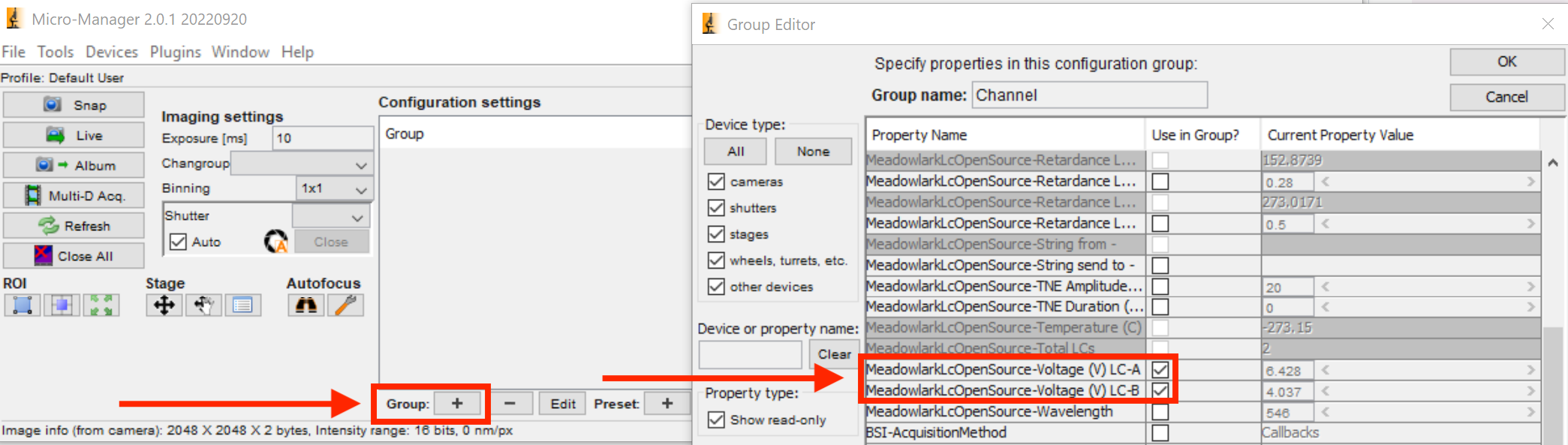
Create a new channel group and add the MeadowlarkLC-Voltage (V) LC-A and MeadowlarkLC-Voltage (V) LC-B properties.
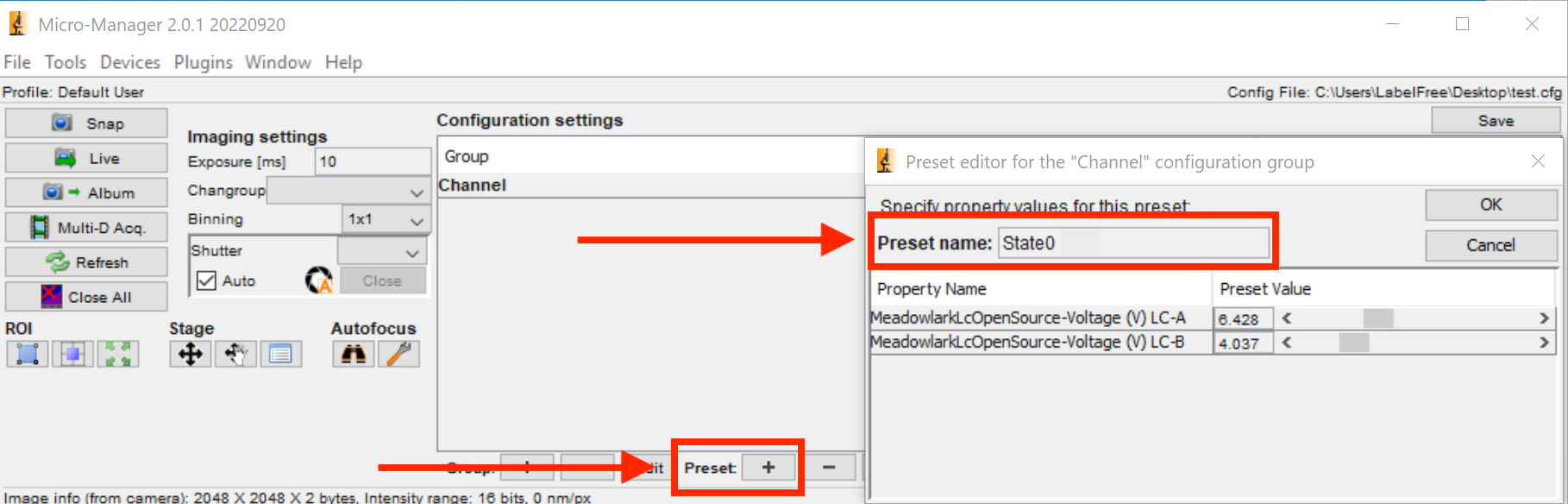
Add 5 presets to this group named State0, State1, State2, State3, and State4. You can set random voltages to add these presets, and waveorder will calibrate and set these voltages later.
Option 2 (soon deprecated): retardance mode calibration installation#
Create a new channel group and add the property MeadowlarkLC-String send to -.

Add 5 presets to this group named State0, State1, State2, State3, and State4 and set the corresponding preset values to state0, state1, state2, state3, state4 in the MeadowlarkLC-String send to –* property.

(Optional) Enable “Phase From BF” acquisition#
If you would like to reconstruct phase from brightfield, add a Micro-Manager preset with brightfield properties (e.g. moving the polarization analyzer out the light path) and give the preset a name that contains one of the following case-insensitive keywords:
["bf", "brightfield", "bright", "labelfree", "label-free", "lf", "label", "phase, "ph"]
In waveorder you can select this preset using the Acquisition Settings > BF Channel dropdown menu.
Enable port access#
Finally, enable port access so that Micro-Manager can communicate with waveorder through the pycromanager bridge. To do so open Micro-Manager and navigate to Tools > Options and check the box that says Run server on port 4827

Connect waveorder to Micro-Manager#
From the waveorder window, click Switch to Online. If you see Success, your installation is complete and you can proceed to the napari plugin guide.
If you you see Failed, check that Micro-Manager is open, check that you’ve enabled Run server on port 4827. If the connection continues to fail, report an issue with your stack trace for support.